
View All Users
The Zeta Login Administration environment provides administrators with a convenient list of users. Business Unit Administrators will see all users across all Business Units they administer. Organization Administrators will see all users across the entire Organization.
Note: This feature is available for Business Unit Administrators and Organization Administrators.
To view the user list:
-
Log into the Zeta Login User Workspace.
-
Click your profile icon in the top-right corner of the screen. The Profile Info pop-up window is displayed.
-
Within the Profile Info pop-up window, click Zeta Login Administration. This will take you to the Zeta Login Administration environment, with the Users tab selected by default.
-
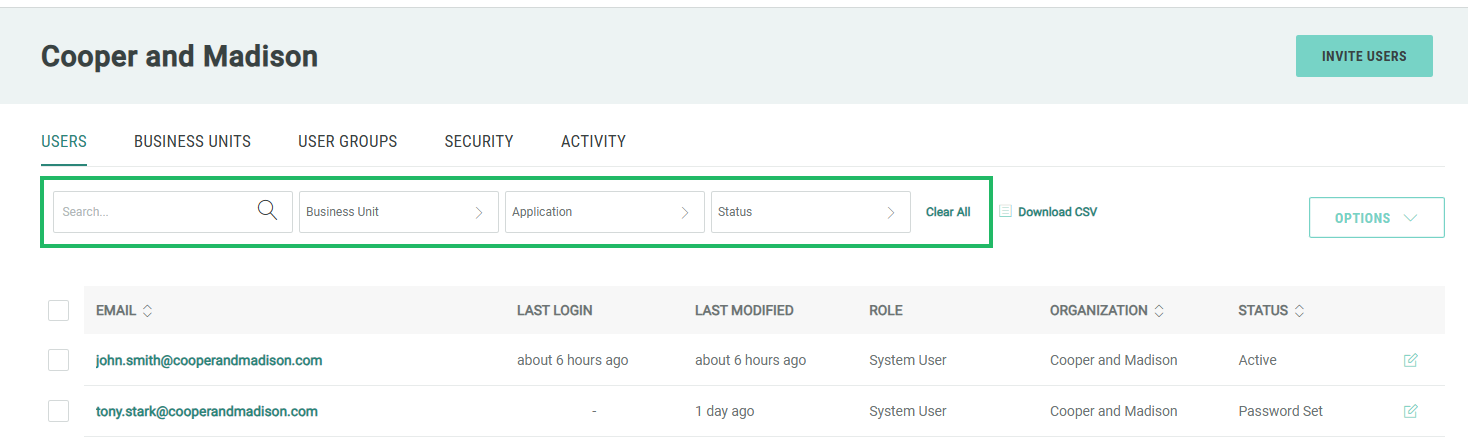
The Users tab displays each user’s email address, last login date, last modified date, role, Organization, and current status. By default, the list is sorted by Last Modified. To instead sort the list by Organization, Status, or Email, click the desired column header. Click the same column header again to toggle the sort order.
-
Optionally filter the user list using one or more of the following filters:
-
In the Search field, enter all or part of the user’s email address.
-
From the Business Unit drop-down menu, select a Business Unit to which the user has been assigned.
-
From the Application drop-down menu, select a Zeta application to which the user has been assigned.
-
From the Status drop-down menu, select a user status.
-
-
Click Clear All to remove all filters.
